Micare - Medical and Health Care WordPress Theme Activated
The digital presence of a medical practice isn't just a marketing tool; it's a critical piece of patient-facing infrastructure. It needs to inspire trust, provide clarity, and be functionally seamless. Dropping the ball on any of these can erode patient confidence before they even step through the door. This is the high-stakes environment where specialized themes enter the conversation. Today, we're putting one such solution under the microscope: the Micare - Medical and Health Care WordPress Theme. This isn't a surface-level look at the demo. We're going to tear it down from a developer's perspective, analyzing its architecture, features, and real-world viability, before walking through a complete installation and setup process. We'll examine the code you don't see, the dependencies you inherit, and the practical challenges of turning its polished demo into a functioning website for a clinic, hospital, or private practice.
Part 1: The Technical Review - Beyond the Demo
Any theme can look good with professional photography and curated demo content. The real test is its flexibility, performance, and underlying structure. Let's dissect Micare on these fronts.
Design Aesthetics and User Experience (UX)
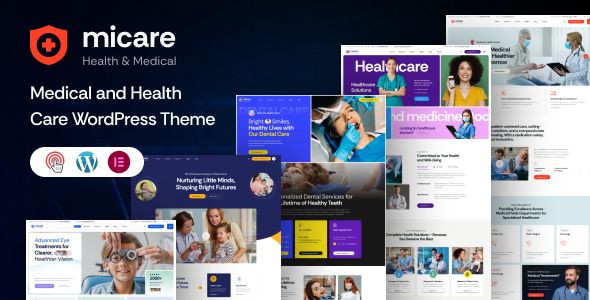
Micare's visual first impression is clean, professional, and appropriately clinical. It avoids the overly flashy animations and cluttered layouts that plague many multi-purpose themes. The color palettes in its various demos (for dentists, clinics, surgeons, etc.) are subdued and professional, relying heavily on whites, blues, and soft greens. This is a smart choice; it conveys a sense of calm and competence.
The typography is solid, with clear heading hierarchies and legible body copy. Spacing is generous, which is crucial for accessibility and readability, especially for an older demographic that might be a key user base for many medical services. The UX feels intuitive from a patient's perspective. Key calls-to-action—like "Make an Appointment" or "Find a Doctor"—are prominently displayed. The navigation is straightforward. Micare's designers clearly understood the primary goals of a medical website: information retrieval and appointment booking.
However, the design, while clean, can feel a bit generic. It adheres so closely to the established "medical website" template that it risks looking like many other sites built on similar themes. True brand differentiation will require significant custom CSS work or a very strong branding identity (logo, photography) to overcome the theme's default aesthetic.
Core Features: A Critical Analysis
A medical theme lives or dies by its specialized features. Micare comes bundled with the expected functionality, primarily managed through custom post types and bundled plugins. Let's break down the most important ones.
1. Appointment Booking System
This is arguably the most critical feature. Micare integrates a booking system, but it's essential to understand what's happening under the hood. Typically, themes like this bundle a third-party plugin, such as Bookly or a similar solution, often a "lite" version.
Pros: The integration is handled for you. The styling of the booking forms matches the theme's aesthetic out of the box, which saves considerable time. The backend workflow is generally straightforward for an office administrator to manage appointments.
Cons & Developer Insights: You are now dependent on this bundled plugin. If it's a "lite" version, you may find yourself needing to purchase a premium license to unlock crucial features like payment gateway integration (Stripe, PayPal), custom fields in the booking form, or staff-specific calendars. Before committing, a developer should investigate which booking plugin is used and what its limitations are. Swapping it out for a different solution later is possible, but you'll lose the custom styling and have to re-integrate forms throughout the site.
2. Doctors / Team Members & Departments
Micare uses Custom Post Types (CPTs) for "Doctors" and "Departments." This is the correct architectural approach. It separates this specialized content from standard WordPress posts and pages, making it much easier to manage and query.
The Good: The CPTs come with relevant custom fields out of the box: specialty, education, office hours, social media links, etc. You can assign doctors to specific departments, creating a logical relationship that can be used to build out detailed service pages.
The Rub: The flexibility is defined by the theme's developers. If your clinic needs a specific custom field that isn't included (e.g., "Insurance Plans Accepted," "Board Certifications"), you'll need to either use a plugin like Advanced Custom Fields (ACF) to extend the CPT or, for the more adventurous, dig into the theme's
functions.phpfile (or preferably, a child theme'sfunctions.php) to register the fields yourself. The latter approach is cleaner but requires coding knowledge.
3. Timetables and Schedules
The ability to display doctor schedules is another key feature. This is often one of the trickiest to implement well. Micare provides a timetable element, likely a custom widget for its page builder. It allows for a clean, visual representation of a weekly schedule. The challenge isn't the display; it's the data entry. An office manager needs a simple, intuitive backend interface to update these schedules. If it's cumbersome, it won't get used. The implementation here is decent, but for complex, multi-location practices with rotating schedules, a dedicated third-party scheduling SaaS might be a more robust (though more expensive) solution.
Under the Hood: Performance, Code, and Dependencies
This is where a senior developer's eye is most critical. A theme's long-term success depends on what you can't see in the demo.
The Page Builder: Elementor
Micare is built on Elementor. This is a double-edged sword.
For the Client: Elementor's drag-and-drop interface is a huge selling point. It empowers non-technical staff to make content updates, change imagery, and even adjust layouts without writing a line of code. Micare provides a suite of custom Elementor widgets ("elements") for displaying doctors, departments, timetables, etc. This is a user-friendly choice.
For the Developer: Elementor can be heavy. It adds its own CSS and JavaScript to every page, and poorly coded custom widgets can further bloat the DOM and increase load times. The acid test is running a demo page through Google PageSpeed Insights. Expect to see recommendations for reducing unused CSS/JS and deferring offscreen images. Achieving a high performance score will require a robust caching plugin (like WP Rocket), a CDN, and diligent image optimization. You are trading some raw performance for ease of use.
Plugin Dependencies
Upon installation, Micare will prompt you to install a list of required and recommended plugins. This typically includes:
Elementor (the page builder)
A booking plugin (as discussed)
Contact Form 7 (for general contact forms)
A slider plugin (e.g., Slider Revolution)
The theme's core functionality plugin (this is good practice, as it separates functionality from presentation)
This is a significant number of dependencies. Each plugin adds overhead, potential security vulnerabilities, and another component to keep updated. This is the reality of modern, feature-rich themes. Your job as the developer is to manage this "plugin ecosystem" and ensure everything stays compatible and secure over time.
The Verdict: Who Is Micare For?
Micare is a strong contender for small to medium-sized medical practices, clinics, and individual practitioners who need a professional website up and running quickly without a massive budget for custom development.
Strengths:
Excellent, professional design aesthetic that builds trust.
Core medical features (booking, doctors, departments) are well-implemented via CPTs.
Elementor integration makes it easy for clients to manage their own content.
The one-click demo import provides a fantastic starting point.
Weaknesses / Considerations:
Performance will require active management and optimization (caching, etc.).
Dependent on a specific ecosystem of bundled plugins, which can limit flexibility.
The design, while clean, can be generic and may require customization to stand out.
For a developer, Micare is a solid rapid-development tool. It handles the 80% of common requirements, allowing you to focus on the 20% of custom tweaks and optimizations that deliver specific value to the client. It's a pragmatic choice, and for those looking to build powerful sites without starting from scratch, sources like gpldock provide access under the GPL license.
Part 2: Installation and Configuration Guide
This is a no-nonsense, step-by-step guide to getting Micare installed and configured. We'll skip the basics of buying a domain and assume you have a fresh WordPress installation ready to go on a decent hosting server.
Prerequisites: Don't Skip This
Hosting: Shared hosting might struggle. A good quality VPS or managed WordPress host is recommended. Check your PHP memory limit (`memory_limit`) and max execution time (`max_execution_time`). I'd recommend at least 256M and 300 seconds, respectively, to handle the theme and demo import process smoothly.
WordPress: A clean, fresh installation. Do not attempt to install this on a site with existing content and plugins unless you know exactly what you're doing and have a full backup.
FTP/SFTP Access: While you can use the WordPress dashboard to upload themes, having FTP/SFTP access is the professional way. It bypasses PHP upload limits and is more reliable for larger theme packages.
Step 1: Get and Upload the Theme Files
First, acquire the theme package. After downloading, you'll likely have a ZIP file named something like micare.zip. Unzip this file on your local computer. Inside, you will find documentation, licensing info, and two crucial ZIP files: micare.zip (the parent theme) and micare-child.zip (the child theme).
Developer's Note: Always, always use a child theme. It allows you to customize CSS, templates, and functions without your changes being overwritten when you update the parent theme. It is non-negotiable for any professional project.
Using your FTP client (like FileZilla or Cyberduck), connect to your server and navigate to wp-content/themes/. Upload both the micare.zip and micare-child.zip files here. Then, return to your WordPress dashboard.
Navigate to Appearance → Themes. You should see Micare and Micare Child. Activate the Micare Child theme.
Step 2: Install Required Plugins
Immediately after activating the theme, you'll see a notice at the top of your dashboard: "This theme requires the following plugins...". This is powered by the TGM Plugin Activation library, a standard feature in premium themes.
Click the "Begin installing plugins" link.
You'll be taken to a new screen. Select all the plugins by clicking the top checkbox.
From the "Bulk Actions" dropdown, select "Install" and click "Apply".
Wait for all the plugins to be installed. It may take a few minutes.
Once complete, click the "Return to Required Plugins Installer" link at the bottom.
Now, select all the plugins again, but this time, choose "Activate" from the Bulk Actions dropdown and click "Apply".
All the necessary functionality is now active. Your dashboard will look much busier, with new menu items for Elementor, the booking system, and the theme's CPTs.
Step 3: Import the Demo Content
The fastest way to get started is to import the demo content. This will replicate the theme's preview site on your own server, giving you a complete structure to edit rather than a blank canvas.
Find the Demo Import option. This is usually located under Appearance → Import Demo Data or a dedicated theme panel menu item.
You will see thumbnails for the different pre-built demos (Main, Dentist, etc.). Choose the one that best fits your project.
Click the "Import" button. There will likely be a confirmation prompt warning you that it can take time and shouldn't be interrupted. Proceed.
Be patient. This process is downloading all the images, pages, posts, and configuring widgets and menus. It can easily take 5-15 minutes. Do not navigate away from the page.
Once you see a success message, the import is complete. Go to your homepage to see the result. It should look identical to the demo.
Step 4: Essential Theme Options Configuration
Now that the structure is in place, it's time to re-brand it. Most of the global settings will be in the Theme Options panel, typically found under Appearance → Customize or a separate "Micare Options" menu item.
Logo & Branding: The very first step. Go to the Header options and upload your client's logo. You'll likely need a standard and a retina (@2x) version.
Colors: Find the color settings. There will be options for primary color, secondary color, link color, etc. Change these to match the brand's style guide. This one change will have the biggest impact on personalizing the site.
Typography: The theme will be integrated with Google Fonts. Select the fonts that align with the brand. Don't go overboard; two font families (one for headings, one for body) is usually sufficient.
Header & Footer: Configure the layout of the header and footer. Choose which widgets to display, update contact information, and link your social media profiles.
Step 5: Customizing Content with Elementor
Your pages (Home, About, Contact) are now populated with demo content and built with Elementor.
Navigate to Pages → All Pages.
Hover over the "Home" page and click "Edit with Elementor".
The Elementor interface will load. You can now click directly on any text, image, or button to edit it. The left-hand panel provides options for the selected element.
Work your way down the page, replacing placeholder text with actual content and swapping stock photos for the client's imagery.
Pay close attention to the custom Micare widgets. These are the elements used to display your doctors, departments, and testimonials. You don't edit the content inside them here; they are simply pulling data from the CPTs you'll manage next.
Step 6: Populating Your Custom Post Types
This is where you'll input the core information for the medical practice.
Departments: Go to the "Departments" menu item in the dashboard. Delete the demo departments and create your own (e.g., "Cardiology," "Pediatrics," "General Surgery").
Doctors: Go to the "Doctors" or "Team" menu item. Delete the demo doctors. Click "Add New" to create profiles for the actual staff. Fill in all the fields: name, biography, specialty, and importantly, assign them to the correct department you created in the previous step. Upload a professional headshot as the Featured Image.
Services & Timetables: Repeat this process for any other CPTs the theme offers, such as "Services" or "Timetables," replacing all demo content with real, accurate information.
Once you've done this, revisit your Elementor pages. You will see that the doctor grids and department listings have automatically updated with the new information you just entered. This is the power of a well-architected theme.
Final Strategic Advice
Micare is a capable and professional theme that can significantly accelerate the development of a website for a medical practice. Its reliance on Elementor and a suite of custom post types strikes a good balance between developer control and client usability. However, remember that a theme is a starting point, not a final product. Real-world success will depend on careful performance optimization, diligent security practices (keeping all plugins and the theme updated), and compelling, high-quality content that replaces the demo placeholders.
While Micare is a strong contender in its niche, the GPL ecosystem is vast. Exploring other Free download WordPress themes can provide different design approaches or feature sets that might be an even better fit for a specific project. The key is to look past the shiny demo and evaluate the underlying architecture, just as we've done here, to make an informed and professional decision.